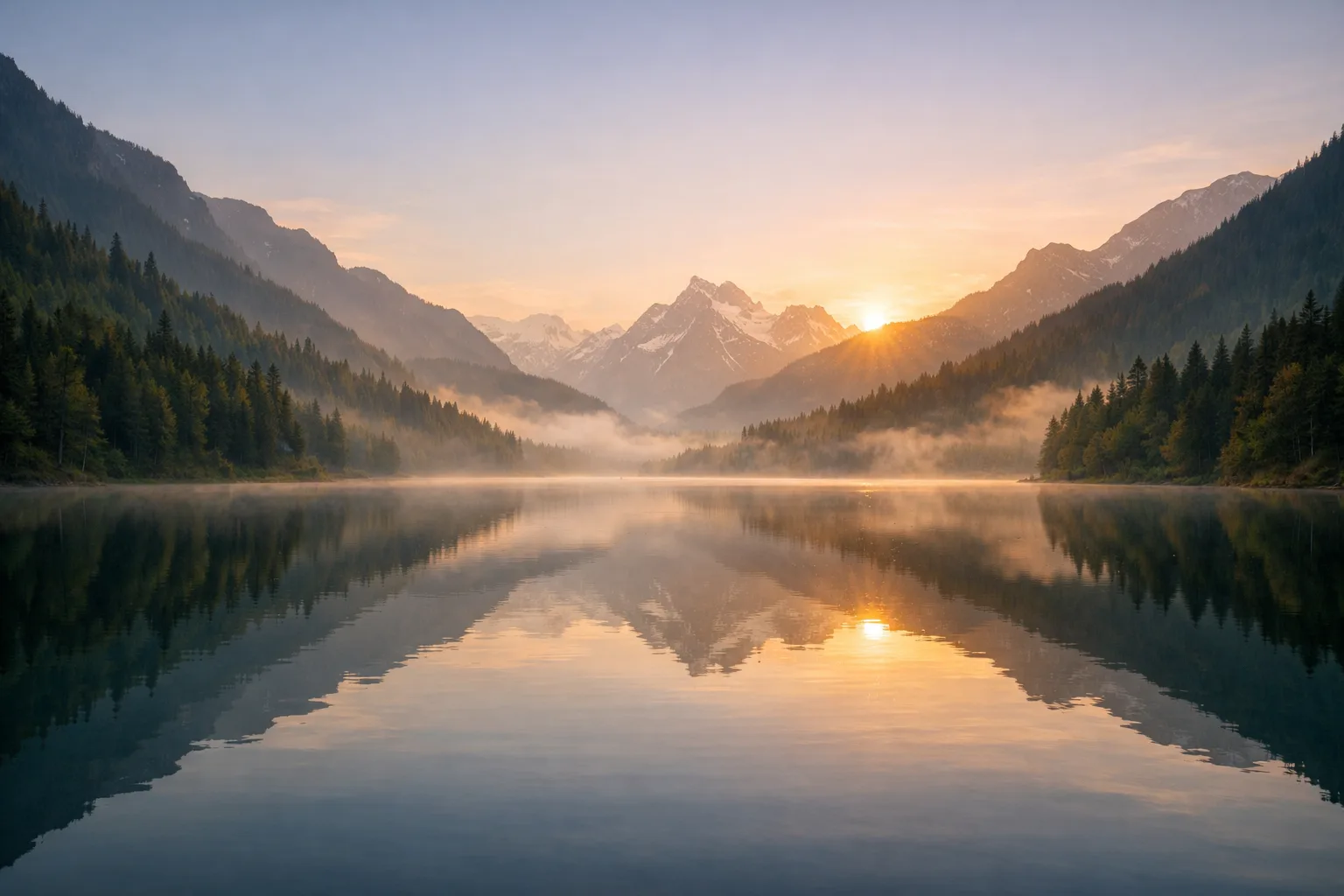
Original Still
Turn a still image into a short AI video with natural camera motion, scene atmosphere, and MP4 export.
Interactive Generator
Upload a still image, describe the camera motion, then export a short MP4 clip. The full tool loads as an enhanced client experience.
Prompt
What you can control
Online Image to Video · Prompt-Guided Motion · MP4 Export
Image to Video
Compare a static frame with an AI-generated video result. Use controlled camera motion, background movement, and subtle atmosphere to make a single image ready for social posts, ads, and edits.
Original Still
AI Animated Result
Image to Video AI
Image to video AI converts a static image into a short video clip by adding motion cues such as pan, zoom, tilt, lighting shifts, and ambient scene movement. It is built for turning existing visuals into MP4 clips without starting from a full video shoot.
Start with one clear JPG, PNG, or WebP image and keep the original composition recognizable.
Describe camera movement, lighting, weather, product reveals, or environmental details in plain language.
Export a short MP4 video clip for reels, ads, product pages, presentations, or editing timelines.
Image to Video Examples
Different still visuals need different motion strategies. These examples keep the movement focused on camera direction, scene atmosphere, and practical video output.
Product image
Use a smooth camera push and controlled studio light movement to turn a product image into a short ad-ready video.
Landscape image
Add slow drift, cloud movement, water texture, or soft light shifts to make travel and landscape images feel video-ready.
Pet photo
Keep pet clips calm by moving the camera and surrounding environment instead of forcing heavy subject motion.
How It Works
Upload an image, describe the motion, choose the video settings, and download the generated MP4 clip.
Start with a clear JPG, PNG, or WebP image. Match the crop to the video format you want when possible.
Use a prompt for camera motion, ambient movement, lighting, weather, or product reveal details.
Preview the generated clip, adjust your prompt if needed, and export the result as an MP4 video.
Control Camera Motion, Mood, and Scene Details
Strong prompts describe what should move, how the camera should travel, and what atmosphere belongs in the scene.
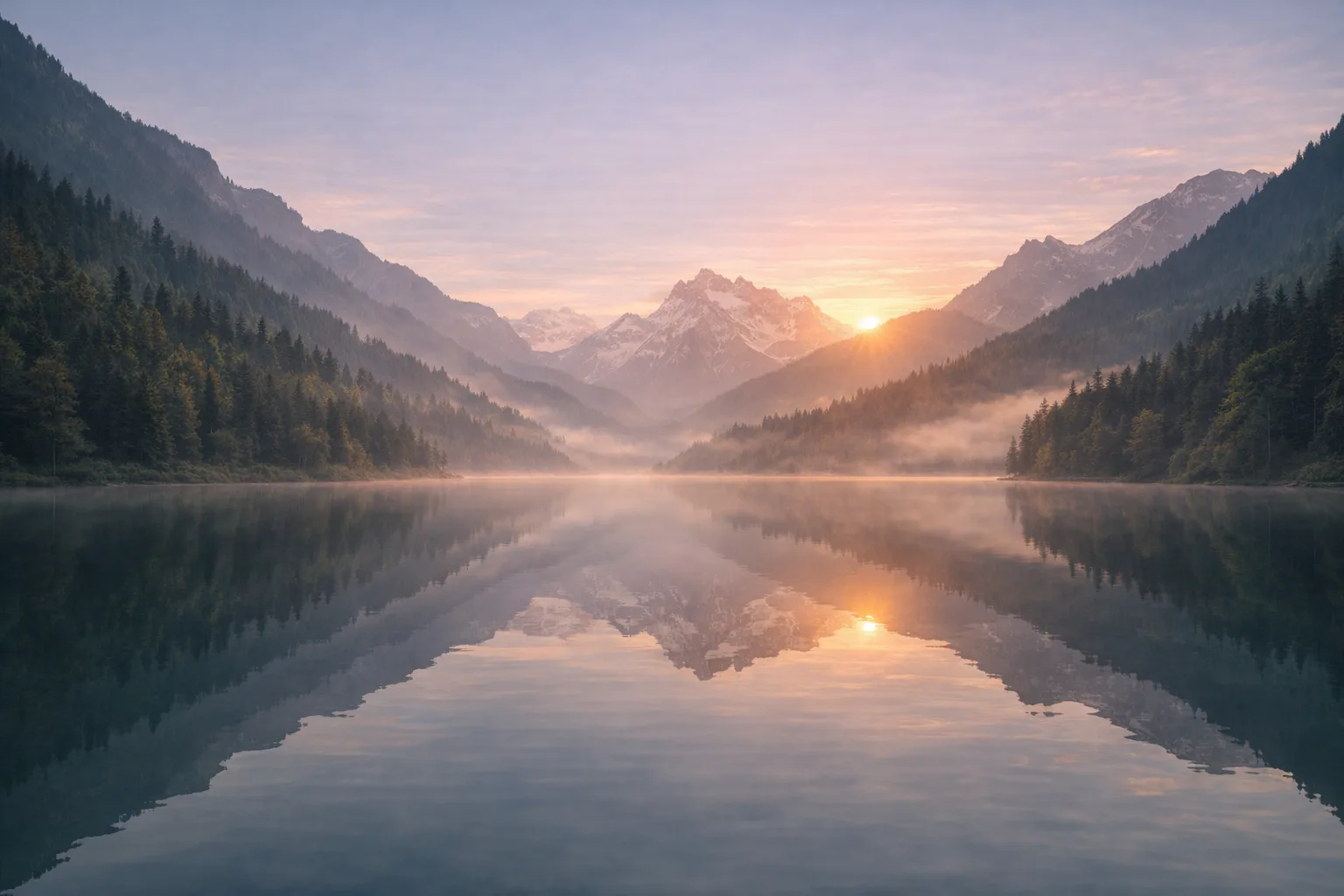
Landscape
slow camera push over a mountain lake with soft sunrise light
Use this when sky, water, and broad scenery should carry the video motion.
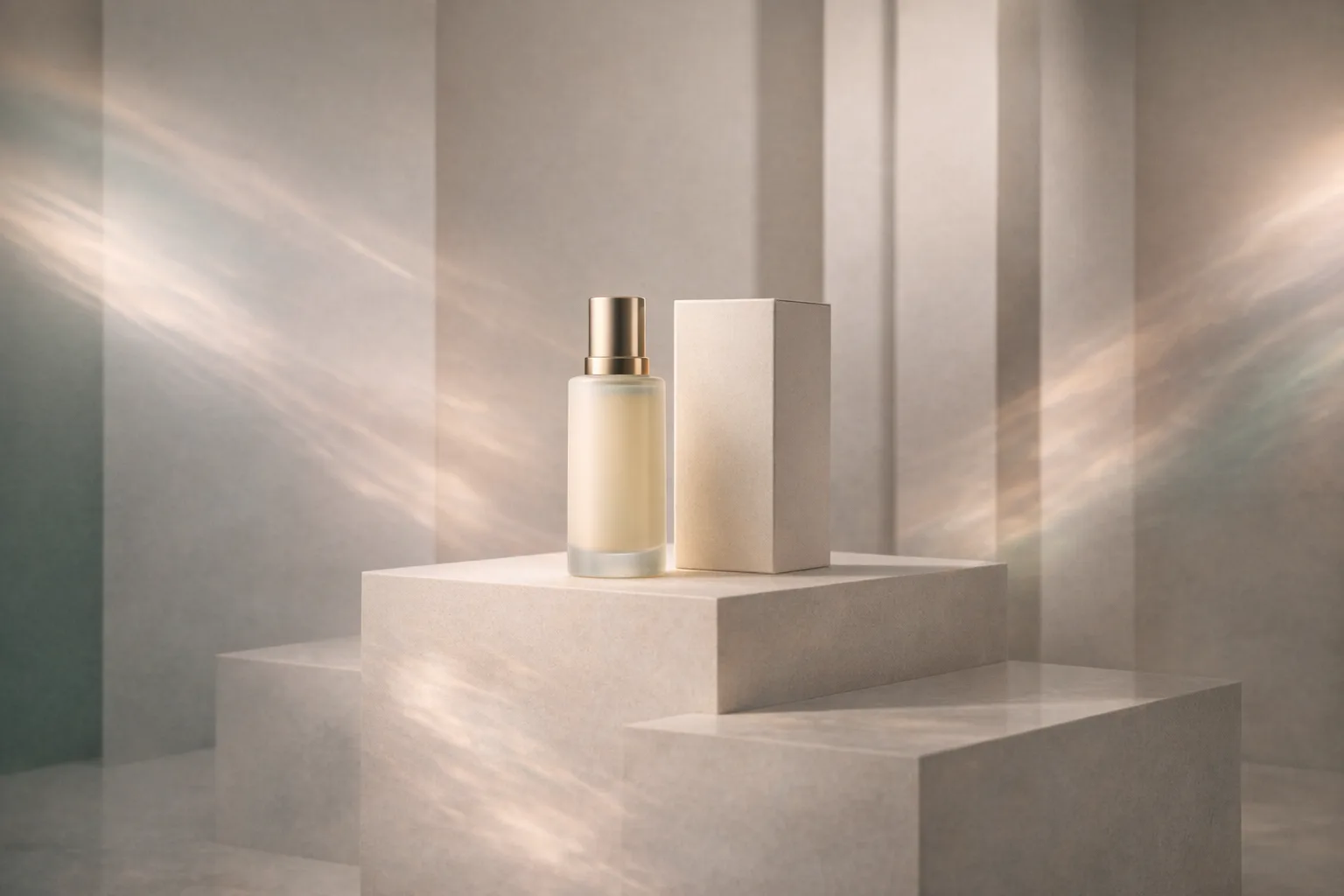
Product
smooth product reveal with subtle studio lighting movement
A good fit for ecommerce images, hero product shots, and polished ad creative.
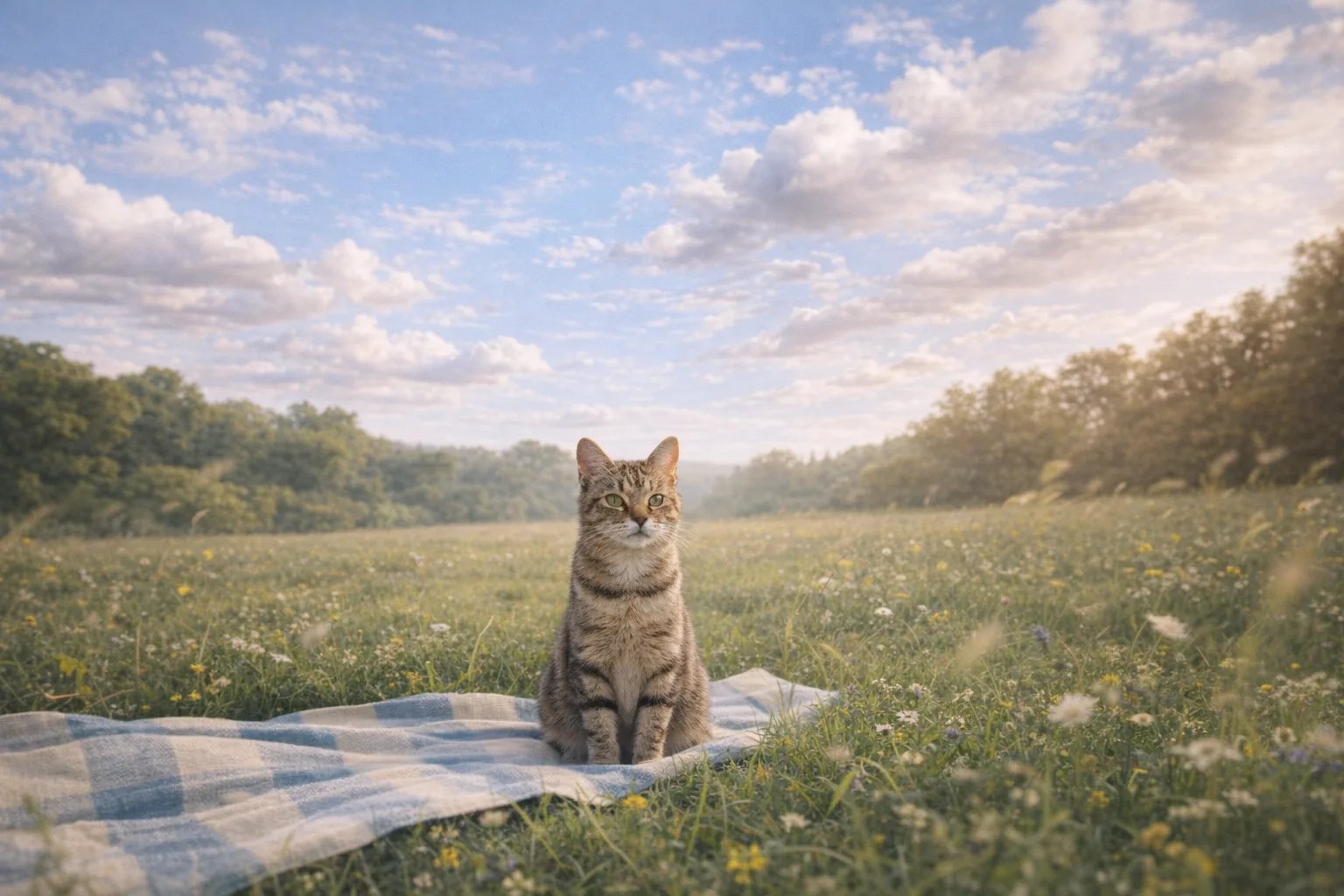
Pet scene
gentle motion in the grass and clouds around a pet sitting outdoors
Keep the clip grounded by letting the outdoor environment and camera rhythm create movement.
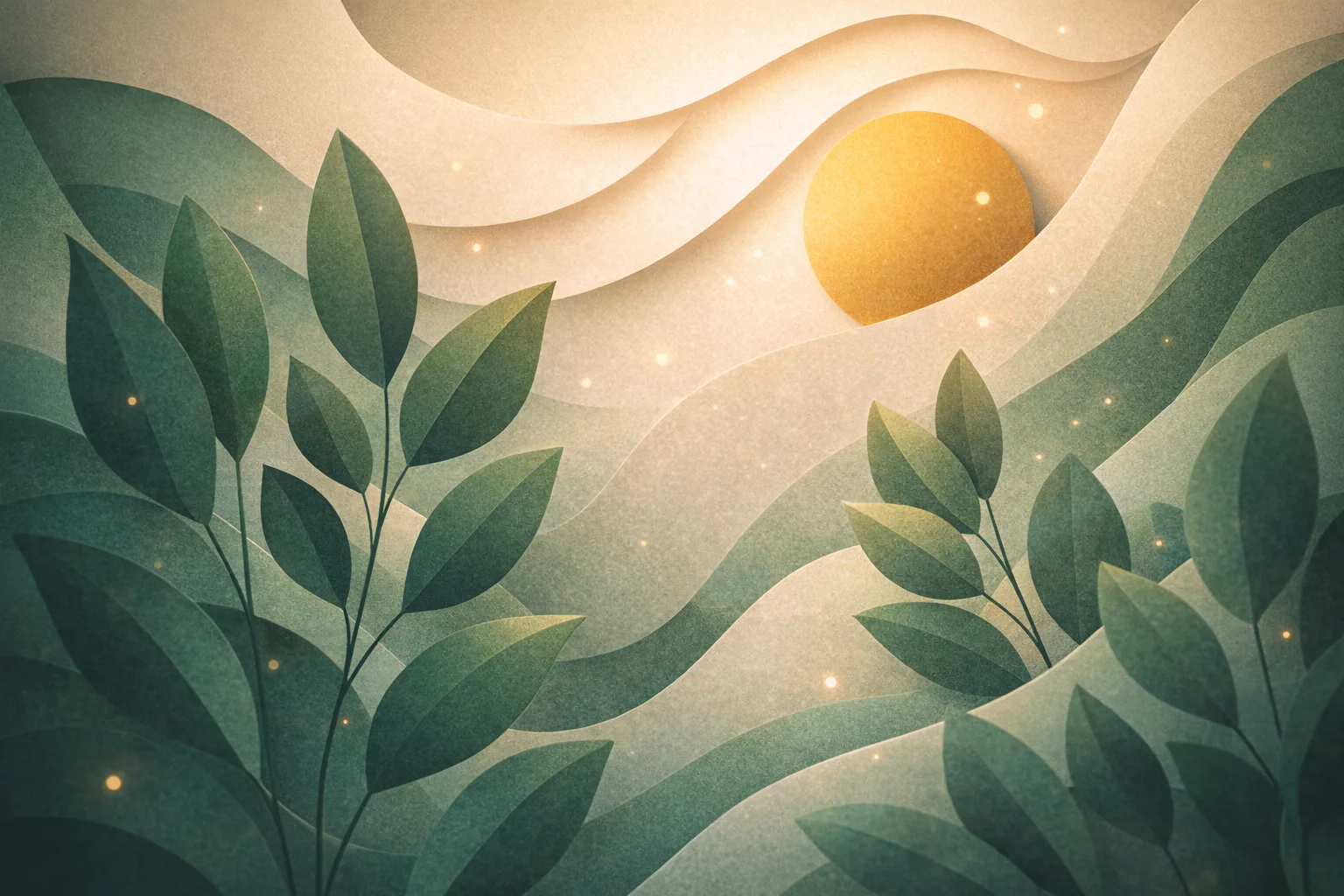
Artwork
loop-ready camera drift with soft depth and light movement
Use subtle movement to make illustrations, posters, and artwork more suitable for short video loops.
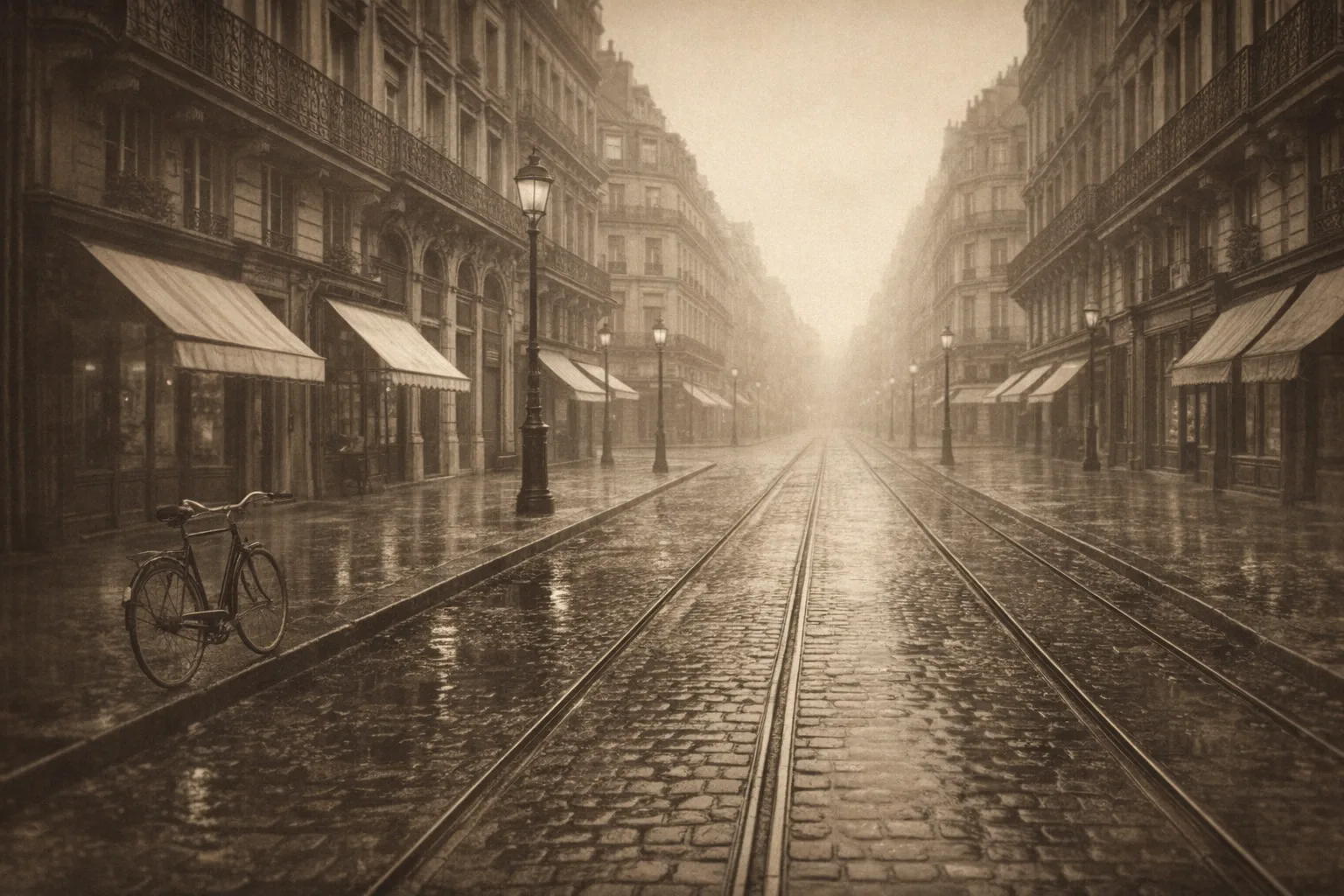
Vintage scene
soft zoom with light grain and layered scene depth
Best for old travel photos or archival scenes where atmosphere matters more than strong motion.
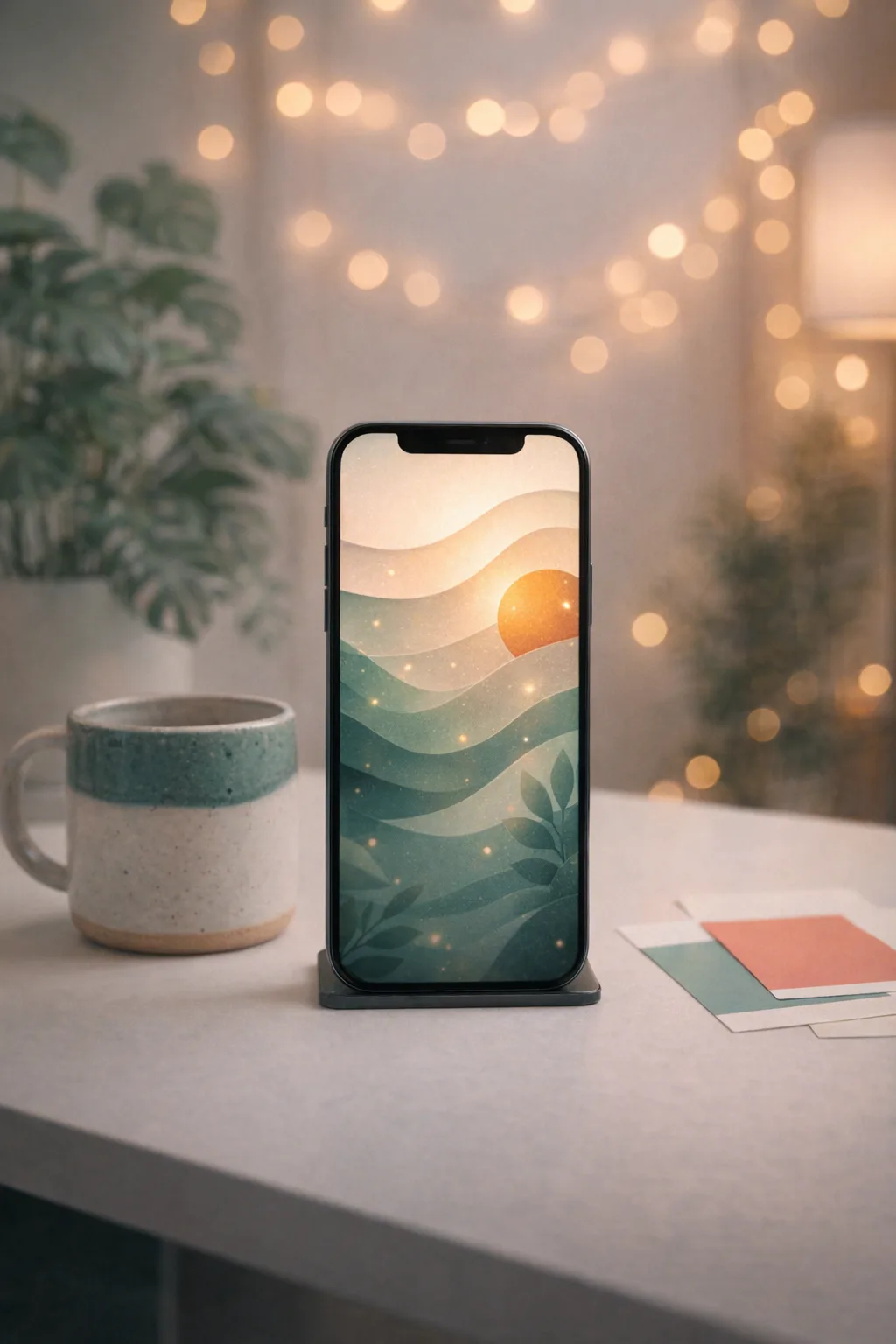
Social clip
vertical cinematic pan with clear subject framing and subtle background motion
Use this for 9:16 reels, shorts, and posts that need readable motion in a small screen feed.
Image to Video Use Cases
Use image to video generation when you already have a strong static asset and need a short MP4 clip for publishing, testing, or editing.
Convert one image into a vertical or square video clip for reels, shorts, stories, and feed posts.
Turn product images into short showcase videos with a clean camera push, lighting movement, and ad-ready framing.
Make supporting motion clips from artwork, brand visuals, travel scenes, or still campaign assets.
Add restrained camera movement, light, and depth to old travel photos or vintage scenes while preserving the original mood.
Turn a key visual into a short opener for slides, launch decks, tutorials, and internal announcements.
Choose the Right Settings for Your Image to Video
The best settings depend on where the video will be used. Short clips, social ratios, and MP4 output keep image to video results easy to publish or edit.
Use short 5 to 10 second clips for loops, ads, openers, and social posts.
Choose 9:16 for vertical feeds, 1:1 for square posts, or 16:9 for landscape video timelines.
Start with a clear source image and choose an output size that matches your publishing channel.
Download the result as an MP4 video for sharing, editing, or adding to a larger campaign.
Image to Video vs. Animate Image
Image to video is a converter-style workflow: one still image goes in, a downloadable short video comes out. Animate image AI is broader and covers creative animation effects for product visuals, illustrations, and design assets.
Best when the goal is a video file with duration, aspect ratio, and MP4 export.
Best when the goal is broader creative motion for existing visuals and campaign assets.
Tips for Better Image to Video Results
Cleaner inputs and focused prompts usually create more stable image to video outputs.
Use a high-resolution image with readable composition and avoid heavy visual clutter.
Crop or choose an aspect ratio before generating so the output fits your target channel.
Name the camera movement, environment, and visual details you want the model to prioritize.
Subtle camera motion, lighting, and atmosphere often look cleaner than aggressive effects.
Image to Video FAQ
These answers cover image formats, prompts, settings, MP4 downloads, credits, and practical publishing use cases.
Upload one still image, guide the motion with a prompt, and export a short MP4 video.